
Last updated on September 9, 2026
Bedeck // Bedazzle | Illustration by Randy Vargas
Are you tired of swapping between tabs and the MTG Arena client when adding cards to your new deck? Of trying to manually type your list out by hand? Well look no further. Your friendly neighborhood guide is here to show you how you can export decks directly from Arena!
Before we start, you might be wondering why you should even bother exporting your decks. After all, you don’t get any rewards or have anything to earn other than the satisfaction of seeing others copy your list. But think of it this way: when you export your deck, you create a new meta, collapse an annoying one, or form an alternative to an existing, solid deck.
The Magic community evolves constantly as new decks spread across the internet, and sharing yours only takes a couple of minutes. So why not be a part of it?
How to Export from MTG Arena
Follow this step-by-step guide and to export your Arena decks like a pro in no time.
1. Open the Decks Tab
Open the “Decks” tab in MTGA and then select the deck you want to export.

2. Export Deck
Hit “Export” at the bottom of the deck editing page.

Quick note: You can’t export from the deck edit screen, so make sure to just select the deck and not open it.
3. Confirm Your Deck Exported
A pop-up appears to let you know that the decklist has been copied to your clipboard – say “OK”.

4. Paste Your Deck
Paste the decklist into a word document and save it. Here you see that the deck list includes the number of cards (1-4 except for basic lands), the card name, and then the 3-letter set code and collector’s number. This means the deck copies the exact edition of the card you use on Arena.

The deck above includes two Ironpaw Aspirant from The Lost Caverns of Ixalan.

Congratulations! You’ve successfully exported your deck. You might feel like a god for achieving so much, but it’s not over yet.
Take Things Further: Upload to Draftsim’s Decks

Now that you know how to export your deck, it would be a shame to keep your lists a secret. There are a few different websites where you can upload your decks and see what other people think about it. One of which is our very own Draftsim! That’s right, we have a deck database. Here’s a quick guide.
On the submit deck page, paste the list you want to upload in the “Maindeck” and “Sideboard” tabs on the left. Then fill out the deck’s info in the “Deck name,” “Deck format,” and “Game mode” fields. You’ll also probably need to complete a Captcha, too. Once you do, click “Preview Deck.”

You’ll be able to look over your deck and make sure everything is correct. Now we come to one of my favorite tools as a brewer: a deck breakdown to analyze for your deck’s mana curve and spell types, and you can sort your deck by color, mana cost, or rarity. Once you’ve verified that everything’s all good, click “Publish Deck.”
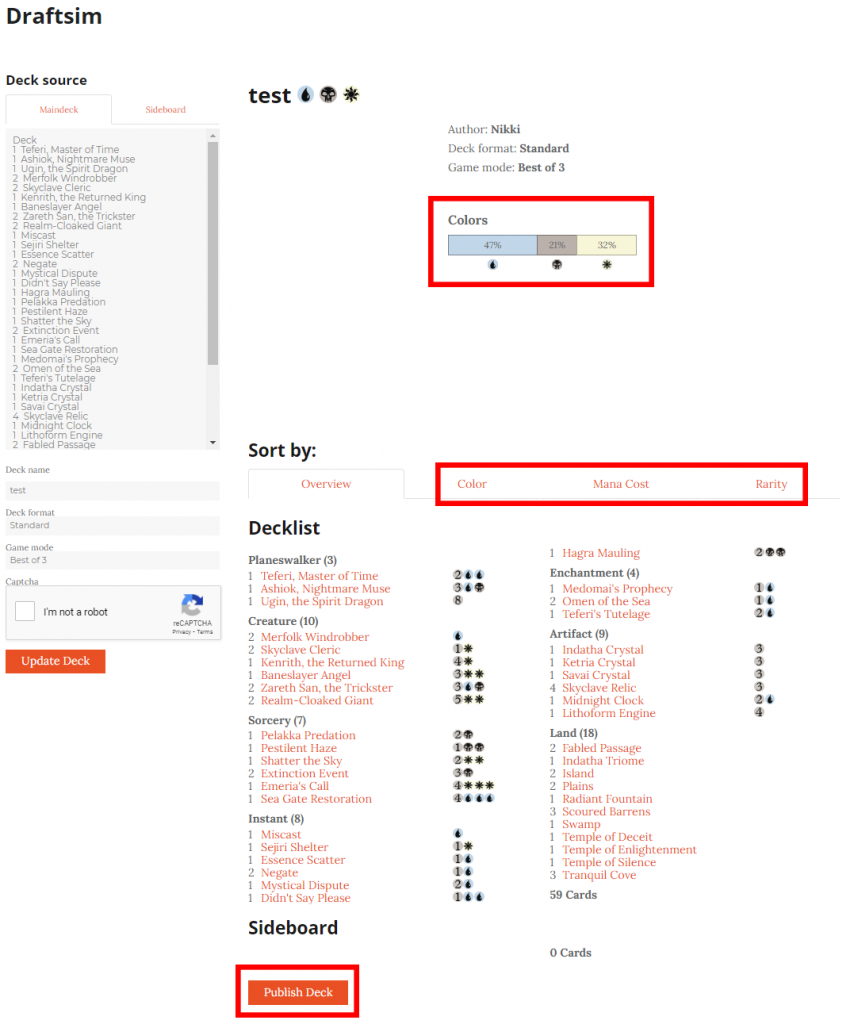
Boom! It’s that easy. Your deck has now been uploaded to our database, and you are ready to share your deck.
Can I Export an Arena Decklist to Get Prices?

If you want to export a decklist from Arena to get the prices, select the blue “Buy this deck” link to see the deck in TCGplayer. This is hands down one of the best ways to check card values on a deck’s worth of cards at once.
One Other Way: Export from Arena Tutor
Aside from using MTG Arena for your exports, there’s one more way you can export your decks. If you’re a regular on Draftsim, you should already know about Arena Tutor, an app you can use to enhance your MTG Arena experience. It’s an MTGA tracker with our signature AI built right in!
If you’re looking to export any deck in MTGA, you can also export it using Arena Tutor. A huge advantage here is that you can share your past draft decks that you may have forgotten to “add to decks” in the game itself. Or sneak into the metagame tab and grab a top-performing deck. We’ve got your back.
Just open the deck you’d like to export in the app, and then click the “Export this deck” button on the top right, like so:

The deck will be copied to your clipboard so you can easily paste and grab more decks to import anywhere you want. Pretty simple, huh?

I really want to share this feature I just discovered in Arena Tutor’s Collection tab. To see your collection, you need to go set by set, and can export a list of the cards in your collection as fast as you can copy and paste.
Export, Don’t Be Shy

Omenport Vigilante | Illustration by Forrest Imel
Exporting your decks and sharing them are part of the ecosystem that’s kept Magic alive and well for decades. It’s not just about saying, “look what I made.” It’s about theory crafting, helping others develop solid plays, and sometimes just helping newcomers win a couple of games, plus building a community around discussion.
Sharing your lists helps build a community and makes it easier for new players to join the fray. I know it may feel bothersome to share your decks or you might hesitate because you think it wouldn’t contribute to anything. You don’t need to be Mythic rank or have won several championships to share your decks with others. Even if you share a list that’s similar to an existing deck, it’s still something new and could help other players come up with an entirely new brew.
So leave any doubts behind, export your decks, and share them to your heart’s content! You can even head over to Draftsim’s Discord to chat about your favorite (or least favorite) lists!
As always, if you have any questions, let me know in the comments. See you next time!
Looking for the flip side of this process? Read this article on how to import decks into MTGA.
Follow Draftsim for awesome articles and set updates:










2 Comments
What does the number after each card mean?
That’s the collector’s number for that particular card. You shouldn’t need that info (or the exact set code either) for importing/exporting, but it’s automatically included in the decklist with Arena’s export feature.
Add Comment