
Last updated on June 25, 2024
Lorehold Apprentice | Illustrated by Manuel Castañón
Spring is in the air, and mage classes are fully underway at Strixhaven. With all the big brain instruction taking place, I highly recommend you take the opportunity to learn many valuable lessons.
You’re welcome. I’m sure you’ve heard a ton of these puns by now but, like I always say, “puns are punny!”
Jokes aside, with the introduction of “learn” and “lesson” cards, your sideboard has taken on a new role in your MTG games. I’m here to guide you through a few ways to view your sideboard when you’re in MTG Arena. Whether you’re building a new deck or drafting, let’s take a look at your options.
So, take a seat, get your pencil, quill, magic writing implement of choice, out and prepare to learn. I couldn’t help myself.
Viewing Your Sideboard In-Game
So, how do you see the cards in your sideboard while playing a game? This is pretty important if you don’t want to forget your lessons, so let’s take a look:
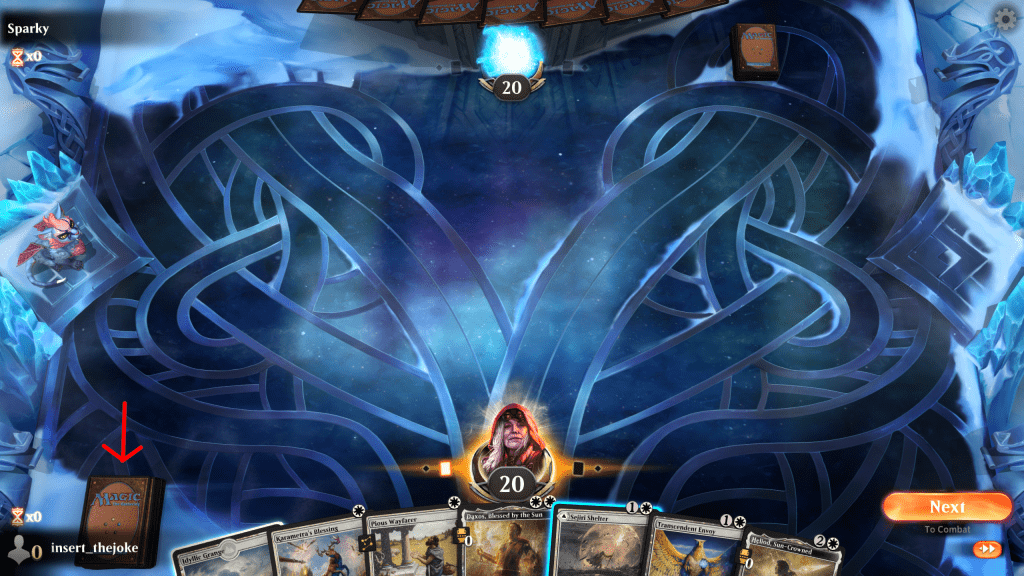
1. Click on your library
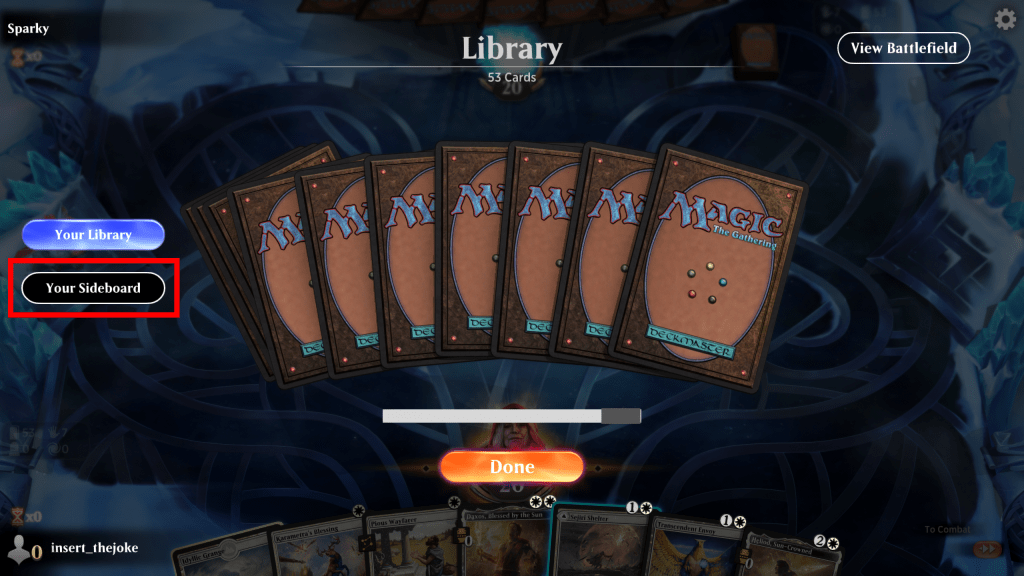
2. Click “Your Sideboard”
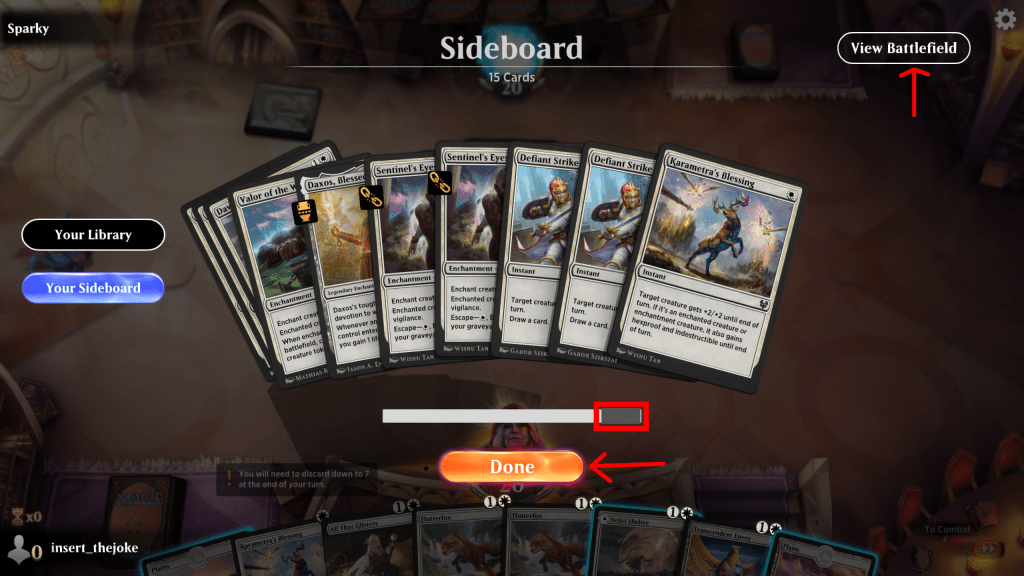
3. Look at your sideboard!
You’ll be able to scroll through it and see what you’ve got in there from here – just click “View Battlefield” or “Done” when you’re ready to return to your game (and make sure not to let yourself time out)
Using Arena Tutor
If you weren’t aware that we have an amazing MTG Arena app called Arena Tutor, I strongly recommend you try it out. Not only does it let you check your sideboard easily while you're in the game, it tracks all the cards in your and your opponents' decks and gives you AI advice while you're drafting!
I’ll wait while you get it all set up!
Now that you’ve joined the amazing Arena Tutor community, let me give you a quick and easy guide to looking at your sideboard, whether you’re in-game or not.
1. Hit “Alt + L” to open the dashboard
2. You can see your entire deck categorized by type, curve, counts, etc. – scroll down to see your sideboard in all its categorized glory
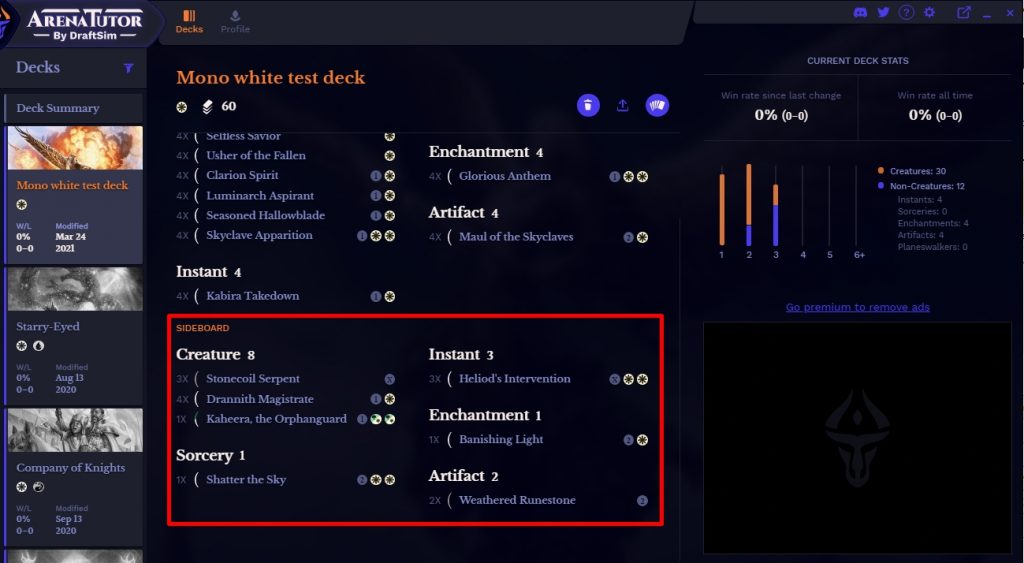
Check Your Sideboard in MTG Arena Deck Builder
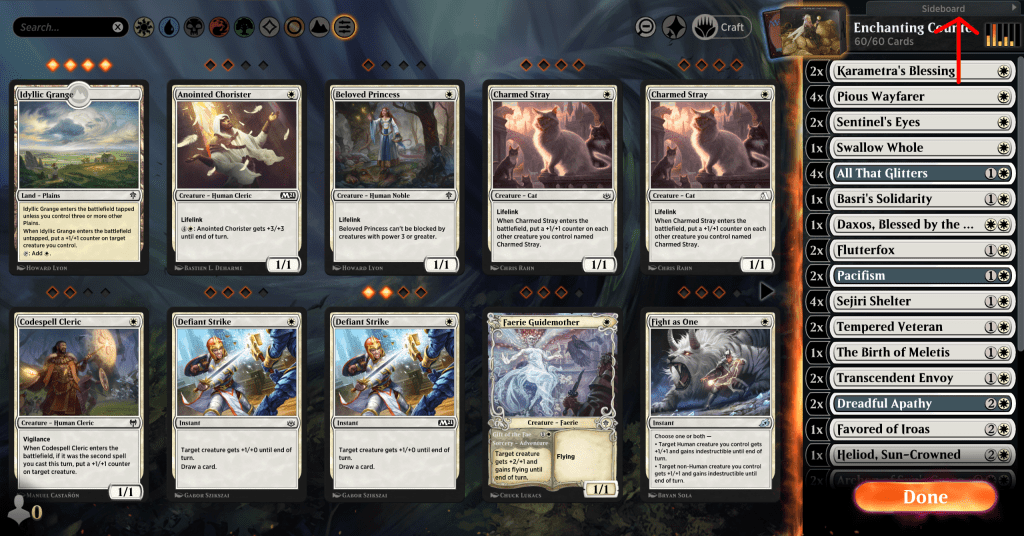
Like many things in the MTG Arena user interface, here's another easy-to-miss feature that lets you switch between viewing your deck and your sideboard.
Before you start the game, make your way over to the “Decks” tab in MTG Arena and then open the deck you want to inspect. Then while looking at your deck, click the tab that says “Sideboard” just above the name and main image for your deck. Your sideboard will pop out and you can edit the cards as your heart desires!
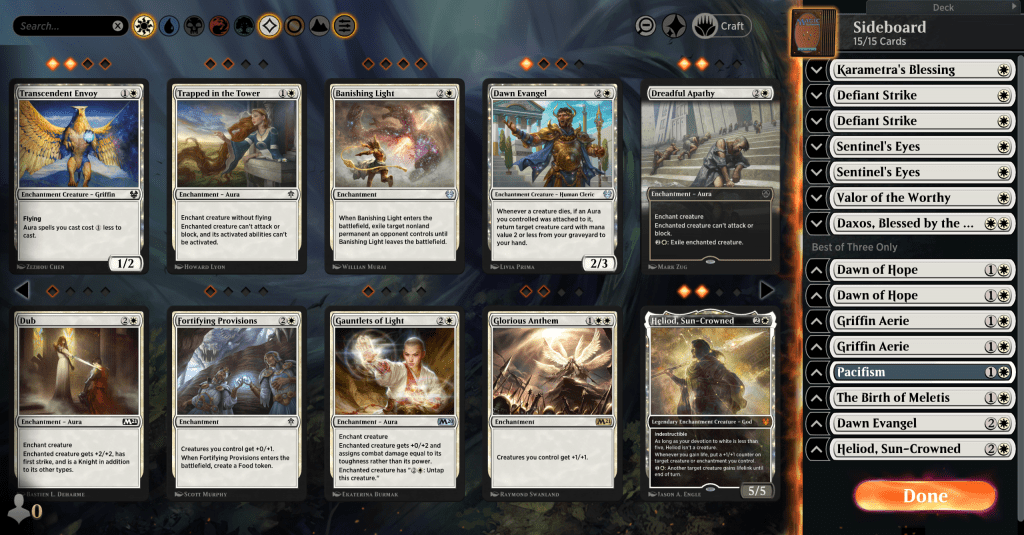
Before Strixhaven was released, there wasn’t a need to have access to your sideboard when playing BO1. Now, MTGA has added new sections to your sideboard.
The top 7 cards that you place in your sideboard are the 7 that will be available in BO1 matches for Constructed play. And as you see in the above photo, the bottom 8 cards will only be available in addition to your top 7 cards (making the full count of 15) for BO3 matches. You can drag cards around in your sideboard to order them as you wish.
If you are in a limited event and you want to see your sideboard, simply double click, or click and edit, your deck to look at your card pool. Because it is limited all cards that are not in your deck will be available in your sideboard whether you are playing BO1 or BO3.
Wrap Up
There you have it, that concludes our “Intro to Viewing Your MTG Arena Sideboard 101” course.
Well done, you stayed awake for the whole lecture! I hope you feel confident about accessing your sideboard. Thank you for taking my intro course, and please give me a good review if you’re so inclined. Tell your friends how much fun you had, maybe send a scroll to your school’s headmaster about how this course really enriched your mage school experience and that I’m an invaluable asset to Strixhaven. I’m really trying to make tenure!
Follow Draftsim for awesome articles and set updates:










2 Comments
Just wanted to know if I could see my sideboard mid-game and you delivered the answer in the first section. Thanks!
Hey Cameron, Awesome! Happy to help. Thank you for the comment 🙂
Add Comment